
Nginx Configuration
All nginx settings exposed by WSA — workers, timeouts, body size, rate limiting, compression, bot protection.
The Nginx Configuration page exposes all nginx settings tunable at the server level. These settings apply globally to all cPanel accounts and all vhosts generated by WSA.
Access: Sidebar → Nginx Configuration.
💡 Per-zone cache settings (Dynamic, CSS/JS, Media) are not on this page — see Cache Configuration. Detailed Brotli settings (level, min length, static) are on Nginx Build & Modules.
1. Tab organization
The page is divided into 5 horizontal tabs:
[ All | General | Rate limiting | Compression | Bot Protection ]| Tab | Content |
|---|---|
| All | Shows all options without filtering. Convenient for search. |
| General | Basic nginx settings (workers, timeouts, buffer sizes). |
| Rate limiting | Rate and connection limits per IP/host. |
| Compression | gzip activation (Brotli is on the Build page). |
| Bot Protection | 8 bot blocking categories + User-Agent lists. |
All settings have:
- Live client-side validation — an invalid field displays in red with a tooltip explaining the expected format.
- Default value indication —
(Default: 30s)shown next to the title. - ↺ undo button — visible when value differs from default, restores default in one click.
- Partial-save policy — if multiple fields are modified and only one is invalid, the others are saved; a banner summarizes rejected fields.
2. General tab
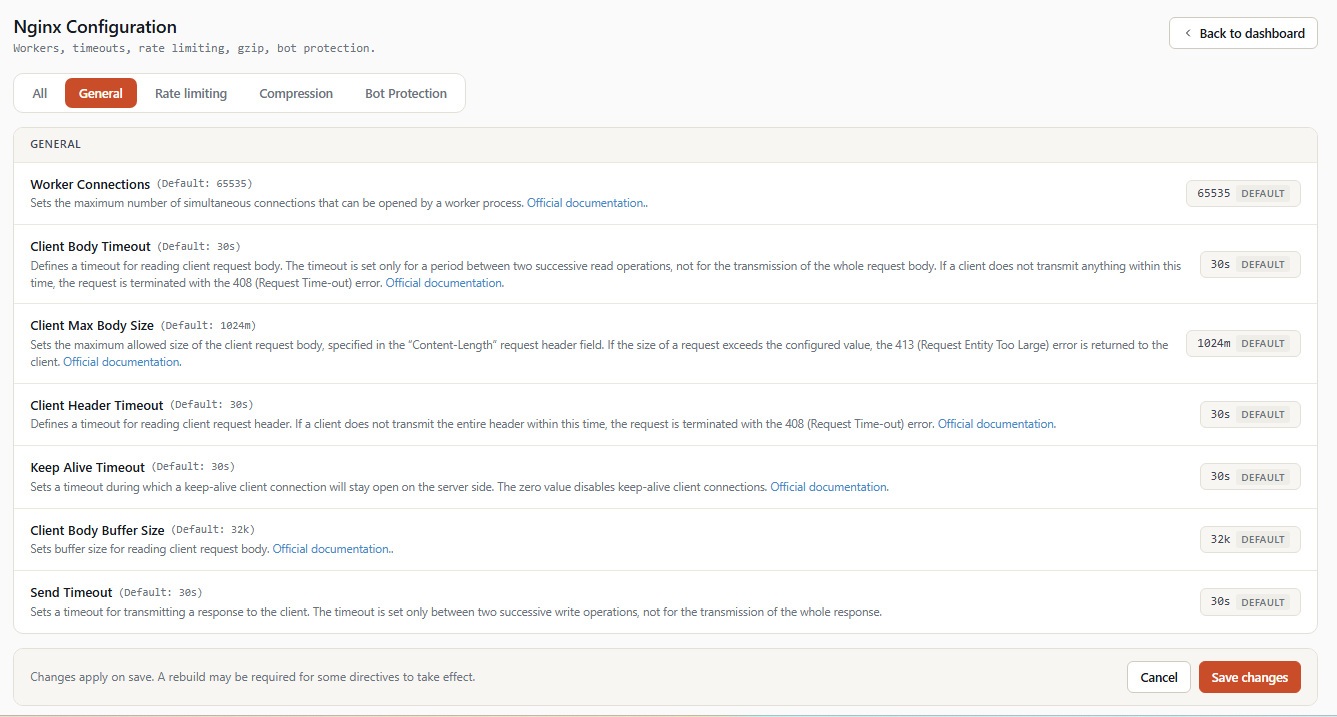
Fundamental nginx daemon settings.
2.1 worker_connections
   worker_connections                 (Default: 65535)
   Maximum simultaneous connections per worker process.
[ 65535 ] ↺Type: integer Default: 65535 Validation: positive integer.
Maximum number of simultaneous connections a single nginx worker process can handle. Multiplied by the number of workers (automatically defined by CPU core count), this gives the total connection capacity of the server.
Recommendations:
| Server load | Recommended value |
|---|---|
| Small server (≤ 4 cores) | 4096 to 8192 |
| Medium server (8 cores) | 16384 |
| Dedicated high-load server | 65535 (default) |
⚠️ Increasing this value consumes kernel memory (ulimit nofile). If you go above 65535, check ulimit -n of the nginx daemon.
2.2 client_body_timeout
   client_body_timeout                  (Default: 30s)
   Time nginx waits for the client to send the request body.
[ 30s ] ↺Type: duration Default: 30s Validation: ^\d{1,9}s$ (integer followed by s).
Timeout between two successive reads of the client request body (POST, PUT). Beyond, the connection is closed with a 408 error.
Specific use cases:
- Large file uploads: if your clients upload large files on slow connections, increase to
60sor120s. - Simple API sites:
30sis largely sufficient.
2.3 client_max_body_size
   client_max_body_size                (Default: 1024m)
   Maximum allowed size of the client request body.
[ 1024m ] ↺Type: size in megabytes Default: 1024m (1 GB) Validation: ^\d{1,9}m$ (integer followed by m).
Maximum size of a request. Beyond, nginx returns 413 Request Entity Too Large without forwarding to Apache.
Recommendations:
| Site type | Recommended value |
|---|---|
| Classic sites | 64m to 256m |
| Sites with image uploads | 256m |
| Sites with video uploads | 1024m to 2048m |
| Online learning platforms (long videos) | 4096m+ |
⚠️ This value must be at least equal to the value configured in PHP (upload_max_filesize and post_max_size). Otherwise nginx cuts the request before Apache can handle the PHP error.
2.4 client_header_timeout
   client_header_timeout                (Default: 30s)
   Time nginx waits for the client to send headers.
[ 30s ] ↺Type: duration Default: 30s
Timeout for receiving the complete HTTP request headers. Very short by nature — a legitimate client sends all headers in a few milliseconds.
Do not modify unless investigating a specific problem. Increasing offers little benefit and facilitates slow-loris attacks.
2.5 keepalive_timeout
   keepalive_timeout                    (Default: 30s)
   How long nginx keeps a client connection alive idle.
[ 30s ] ↺Type: duration Default: 30s
Duration a TCP/HTTP keep-alive connection stays open after the last request. Allows serving multiple requests from the same client over a single connection.
Trade-off:
- Higher value (
60s+): better perceived performance (fewer TLS handshakes), but more open connections simultaneously. - Lower value (
10s): frees resources faster but re-handshakes more often.
30s is a good balance for most cases.
2.6 client_body_buffer_size
   client_body_buffer_size              (Default: 32k)
   Memory buffer size for reading the request body.
[ 32k ] ↺Type: size in kilobytes Default: 32k Validation: ^\d{1,9}k$.
Memory buffer size used to read the request body. If the body exceeds this size, nginx writes it to a temporary file (slower).
Typical cases:
- Sites with small forms:
8kto32k. - JSON APIs receiving large payloads:
64kto256k. - Upload endpoints: leave at
32k(the upload goes to temporary disk anyway).
2.7 send_timeout
   send_timeout                         (Default: 30s)
   Timeout for transmitting a response to the client.
[ 30s ] ↺Type: duration Default: 30s
Timeout between two write operations to the client. If the client doesn't read within this delay (saturated connection, packet loss), nginx closes.
30s covers most cases. Increase only for very long downloads on slow connections.
3. Rate limiting tab
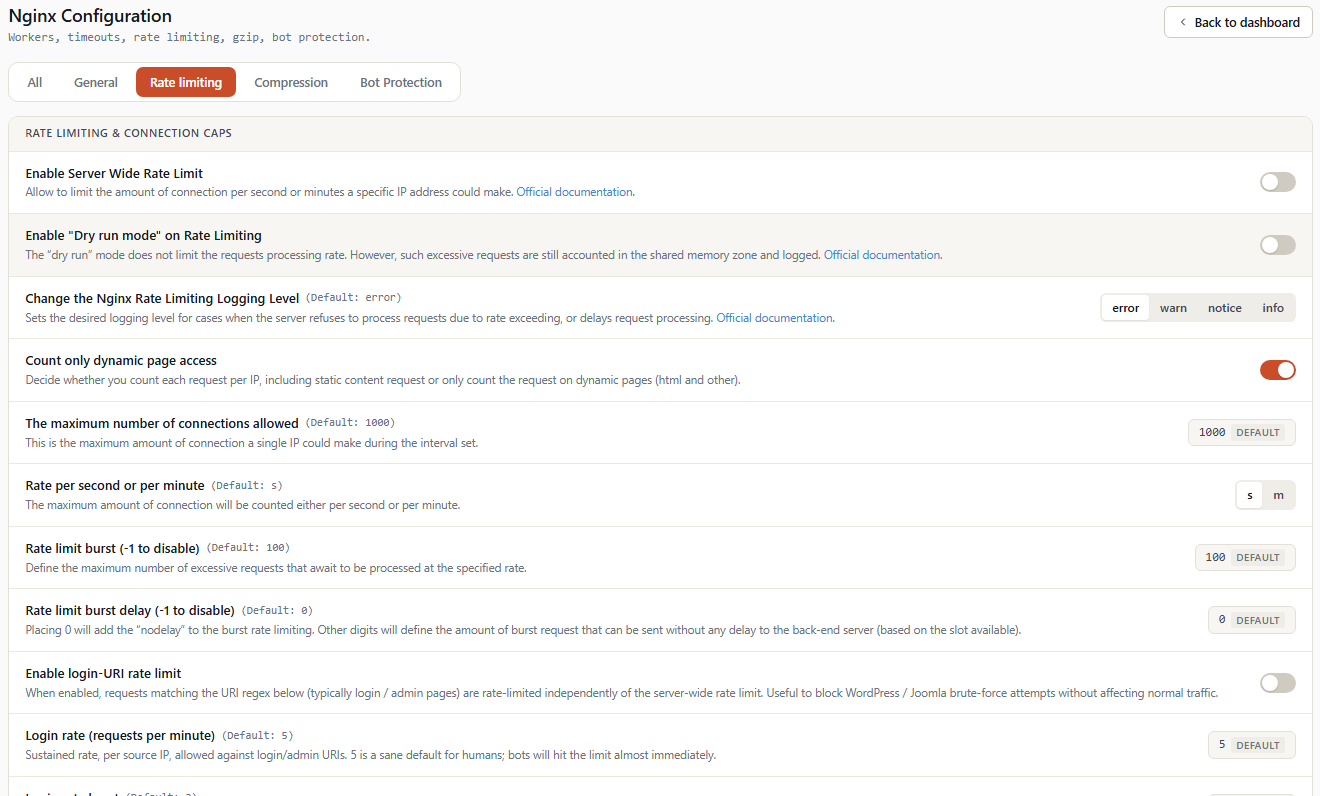
Rate and connection limits to protect the server against abuse and denial-of-service attacks.
📝 All these protections are disabled by default. Enable them progressively, starting with recommended values, and monitor the nginx log (
error.logatnoticeor higher level) for potential false positives.
3.1 Global server rate limiting
3.1.1 srv_ratelimit_srv_enable
Type: toggle (On/Off) Default: Off
Master switch for server-level rate limiting. When enabled, all srvratelimit* limits below apply. When disabled, no limit is applied (other fields become visually inactive).
3.1.2 limit_req_dry_run
Type: toggle (On/Off) Default: Off
Test mode: logs requests that would have been limited without actually limiting them. Allows validating the configuration without blocking legitimate traffic.
Recommendation: enable for 1 week after each limit change, then disable once logs confirm absence of false positives.
3.1.3 limit_req_log_level
Type: selector (info, notice, warn, error) Default: error
Log level for limited requests. error generates a lot of noise in the log; info more discreet.
3.1.4 srv_ratelimit_dym_only
Type: toggle (On/Off) Default: On
When On, rate limiting only applies to dynamic pages (PHP, API, etc.). Static files (CSS, JS, images) always pass without limit, which is generally the right behavior — a visitor loads 50 static files per page but doesn't trigger the limit 50 times.
Disable only if you also protect the rate of static resources (rare, e.g. image scraping protection).
3.1.5 srv_ratelimit_srv_connection
Type: integer Default: 1000
Maximum number of requests allowed in the time window defined by srv_ratelimit_srv_lapse. Beyond, requests are queued (up to burst) or rejected.
3.1.6 srv_ratelimit_srv_lapse
Type: selector (s = second, m = minute) Default: s
Time window unit. s = per second, m = per minute.
Calculation: with srv_ratelimit_srv_connection=1000 and srv_ratelimit_srv_lapse=s, the limit is 1000 requests/sec at the server level.
3.1.7 srv_ratelimit_srv_burst
Type: integer Default: 100
Temporary tolerance: how many requests above the limit can be queued before being rejected.
3.1.8 srv_ratelimit_srv_burst_delay
Type: integer Default: 0
How many of the burst requests are served immediately without delay. The rest are artificially delayed to spread the load.
3.2 Login rate limiting (anti-bruteforce)
Specific limit for login URIs (/wp-login.php, /xmlrpc.php, etc.). Very targeted, disabled by default to avoid surprise.
3.2.1 srv_ratelimit_login_enable
Type: toggle Default: Off
Enables the specific anti-bruteforce limit on login pages.
3.2.2 srv_ratelimit_login_rate
Type: integer (per minute) Default: 5
Number of attempts per IP per minute. 5 = a visitor cannot attempt to log in more than 5 times per minute, across all login pages.
3.2.3 srv_ratelimit_login_burst
Type: integer Default: 3
Additional attempts tolerated in burst.
3.2.4 srv_ratelimit_login_uri_regex
Type: text (regex) Default: ^/(wp-login\.php|xmlrpc\.php|administrator(/|$)|admin\.php|login(/|$))
Regular expression of URIs considered "login pages". Requests matching this regex go through the specific anti-bruteforce limit (instead of the general rate-limit).
Customization: if you host CMS with non-standard login URLs (/wp-admin/auth.php, /connect/login, etc.), add them to the regex.
3.3 Connection limits
3.3.1 srv_limit_conn_per_ip_enable + _max
Type: toggle + integer Default: Off / 50
Limits the number of simultaneous connections per source IP. Protects against an IP attempting to occupy all nginx workers for a denial of service.
50 is generous — most browsers open 4 to 8 connections to the same server.
3.3.2 srv_limit_conn_per_host_enable + _max
Type: toggle + integer Default: Off / 1000
Limits the number of simultaneous connections per hosted domain. Multi-tenant fairness guarantee: a site that explodes can't suffocate other accounts.
1000 connections per domain simultaneously is very broad; values between 200 and 500 are reasonable for most shared servers.
⚠️ The whitelist does NOT apply to this limit — that's exactly what we want to prevent: a domain over-using resources.
3.4 srv_ratelimit_whitelist
Type: textarea (one CIDR per line) Default: empty
List of IP addresses or CIDR ranges to exempt from server and per-IP rate limiting. One entry per line.
Example:
10.0.0.0/8
192.168.1.0/24
203.0.113.42
Typical use cases:
- Internal IPs of your infrastructure (CI/CD, monitoring).
- Partner addresses doing benchmarks.
- Static IP of a client for troubleshooting.
💡
127.0.0.1is always implicitly whitelisted — no need to add it.
4. Compression tab
4.1 gzip_enable
   gzip_enable                              (Default: 1)
   Enable gzip compression server-wide.
[ ON ] ↺Type: toggle Default: On
Enables gzip compression for all appropriate responses. Negotiation is automatic via the client's Accept-Encoding header.
Disable only in very specific cases: server under extreme CPU pressure where compression becomes a bottleneck, or debug.
4.2 gzip_static_enable
   gzip_static_enable                       (Default: 1)
   Serve a pre-compressed .gz sibling if present.
[ ON ] ↺Type: toggle Default: On
When enabled, if a pre-compressed .gz version of a file exists (style.css + style.css.gz), nginx serves it directly instead of compressing on the fly. Performance gain for sites that pre-compress their assets (Webpack, gulp, build scripts).
No downside — leave enabled.
📝 Detailed Brotli configuration (level, min length, etc.) is on the Nginx Build & Modules page because it's conditioned on the presence of the compiled module.
5. Bot Protection tab
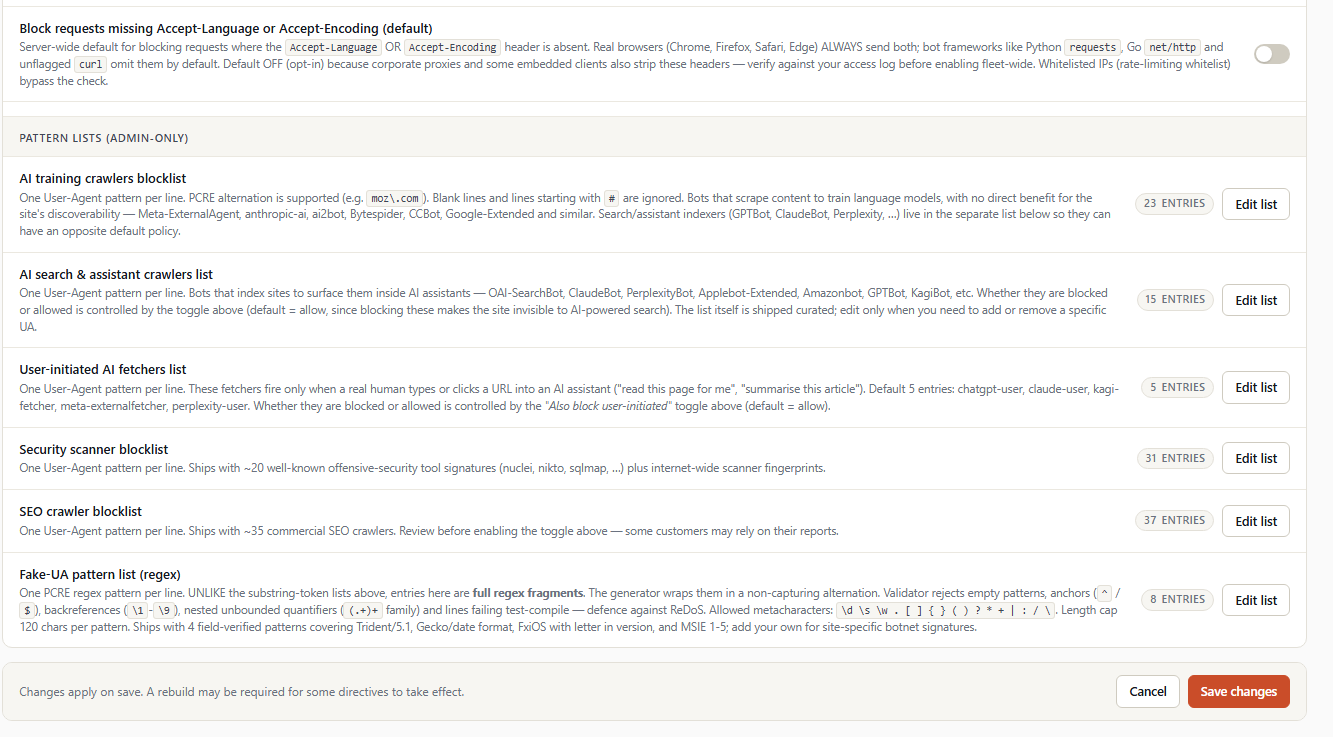
8 categories of unwanted bot blocking at the nginx level. Each category is a global toggle; the first 5 also expose an editable User-Agent list (textarea). Since 2.2.15, a separate trusted-proxy allowlist (§5.3) does the opposite — it exempts named first-party proxies (e.g. Gmail's image proxy) from every blocking category.
For the functional description of each category (what each does, recommendations), see cPanel Advanced mode — Bot Protection tab which describes the same structure on the customer side.
On the WHM side, the administrator's role is to define the default server policy (the initial values each cPanel customer sees in their interface) and to maintain the master lists of blocked User-Agents.
5.1 Main toggles (8 categories)
| POST field | Category | Default |
|---|---|---|
bot_protection_ai_enable |
AI training crawlers | On |
bot_protection_ai_search_enable |
AI search assistants | Off |
bot_protection_ai_userinit_enable |
AI user tools | Off |
bot_protection_scanners_enable |
Vulnerability scanners | On |
bot_protection_seo_enable |
SEO spiders | Off |
bot_protection_fake_ua_enable |
Fake User-Agents | On |
bot_protection_strict_headers_enable |
Required headers | Off |
bot_protection_noagent_enable |
Empty User-Agent | On |
Each toggle accepts 3 states in cPanel advanced mode (server inheritance / forced blocked / forced allowed). On the WHM side here, you only define the server default as On or Off.
5.2 Editable lists (5 categories)
5 textareas to edit the master lists:
bot_protection_ai_listbot_protection_ai_search_listbot_protection_ai_userinit_listbot_protection_scanners_listbot_protection_seo_listbot_protection_fake_ua_list
Format: one User-Agent per line. Allowed characters: A-Z, a-z, 0-9, ., -, _, \, |, (, ), *, +, ?, space and newline. No comma (reserved separator).
Example bot_protection_ai_list
gptbot
chatgpt-user
oai-searchbot
ccbot
claude-web
claudebot
anthropic-ai
googleother
bytespider
ai2bot
imagesiftbot
mistralai-user
Good practices:
- Add new AI bots as they appear in logs (look at Show Top Offenders on the dashboard).
- Keep consistent case convention (lowercase recommended — match is case-insensitive).
- Test in
limit_req_dry_runmode before imposing a mass change.
5.3 Trusted proxy allowlist (GoogleImageProxy) — since 2.2.15
Unlike the blocking categories above, the trusted-proxy allowlist does the reverse: a request whose User-Agent matches an entry is exempted from every bot-protection category (it is never returned a 444). It exists for legitimate first-party proxies whose User-Agent looks suspicious to the blocking rules.
The shipped example is Gmail's image proxy (GoogleImageProxy). When a recipient opens an HTML newsletter in Gmail, Google fetches every image through this proxy with a legacy User-Agent:
Mozilla/5.0 (Windows NT 5.1; rv:11.0) Gecko Firefox/11.0 (via ggpht.com GoogleImageProxy)The Windows NT 5.1 token matches the Fake User-Agents rule, so without this allowlist the images are returned a 444 and fail to display in Gmail.
| POST field | Role | Default |
|---|---|---|
bot_protection_trusted_ua_enable |
Master switch for the allowlist | On |
bot_protection_trusted_ua_list |
Trusted User-Agent tokens, one per line | GoogleImageProxy |
Format (stricter than the blocklists above): one literal token per line; allowed characters are A-Z, a-z, 0-9, ., -, _ only. The match is a case-insensitive literal substring — regex is not supported here (a . matches a literal dot), and the metacharacters | ( ) * + ? \, spaces and commas are rejected at save. Prefer a distinctive token: a short or generic one (e.g. Bot) over-matches — EvilBotnet contains Bot — and would let real bots bypass protection.
To disable the allowlist entirely, turn the master toggle Off: no User-Agent will then bypass bot protection (only the rate-limit IP whitelist still does), while the token list is preserved but ignored. Clearing the list alone reverts to the shipped GoogleImageProxy default rather than disabling it.
⚠️ This is a bypass of every bot-protection category keyed on a spoofable User-Agent string. Only add tokens for proxies you trust, and keep each token as specific as possible.
5.4 Client-side JS and server validation
- JS live: textarea goes to red border if content doesn't respect the allowed regex.
- Server: validation is replayed at save; invalid lines are dropped with a warning listing the rejected entries.
6. Footer — saving
   Errors are reported above; valid fields still save.
                              [ Cancel ]  [ Save configuration ]
6.1 Save configuration button
- Client-side validation of all fields.
- POST to dispatcher
mod-action=save-nginx-setting. - Partial save: valid fields are saved even if others are invalid (rejected ones are listed in a yellow banner).
- Automatic nginx rebuild after save (streamed output).
- Page refreshed with a green banner listing the actually modified options.
6.2 Cancel button
Return to dashboard without applying changes.
7. Further reading
- Cache configuration — Per-zone settings (Dynamic, CSS/JS, Media).
- Nginx Build & Modules — nginx binary build, HTTP/3, Brotli configuration.
- cPanel advanced mode — See how customers override Bot Protection policy per domain.