
Simple mode
One-click WSA configuration with pre-calibrated profiles.
Simple mode is the fastest way to configure WSA on your cPanel account. You pick one profile from a list, and WSA applies the right settings to all your domains simultaneously.
When to use Simple mode:
- You want to enable WSA without diving into technical details.
- All your domains hosted on this account have similar profiles (all blogs, all brochure sites, all stores, etc.).
- You're new to WSA.
If your sites have very different needs from each other, Advanced mode is better suited.
1. Access Simple mode
After opening WSA in cPanel, make sure the Simple mode button is selected in the mode selector (just below the welcome section).
If you're in Advanced mode, click Simple mode — your advanced settings stay saved and will be restored if you toggle back later.
2. The Simple mode page
   ┌────────────────────────────────────────────────────┐
   │  Choose a caching profile                          │
   │  One click and we apply the right settings for     │
   │  your site type.                                   │
   ├────────────────────────────────────────────────────┤
   │                                                    │
   │   ╔═══════════════════╗      ┌────────────────┐    │
   │   ║ ▏  No caching     ║      │                │    │
   │   ╠═══════════════════╣      │   ╭───────╮    │    │
   │   ║ ▏▎ Monthly        ║      │   │ Fast  │    │    │
   │   ╠═══════════════════╣      │   ╰───────╯    │    │
   │   ║ ▏▎▍ Weekly        ║      │   Needle      │    │
   │   ╠═══════════════════╣      │   rotates per │    │
   │   ║ ▏▎▍▌ Daily       ●║      │   profile     │    │
   │   ╠═══════════════════╣      │                │    │
   │   ║ ▏▎▍▌▋ Store       ║      │                │    │
   │   ╚═══════════════════╝      └────────────────┘    │
   │                                                    │
   │              [ Save ]                              │
   └────────────────────────────────────────────────────┘
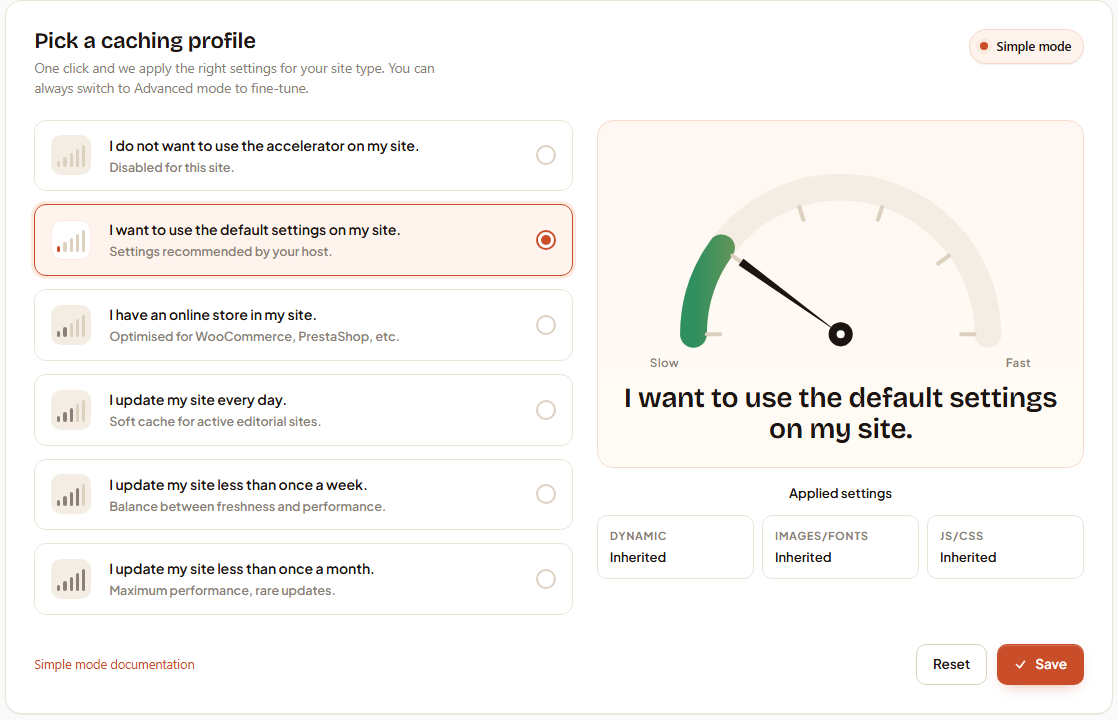
In the center, a list of 5 profiles (on the left) and a visual speed indicator (on the right).
2.1 The speed bars
Each profile displays 5 vertical bars that represent the approximate speed this profile brings:
- ▏ — 1 bar lit: no acceleration.
- ▏▎ — 2 bars: moderate acceleration.
- ▏▎▍ — 3 bars: good acceleration.
- ▏▎▍▌ — 4 bars: high acceleration.
- ▏▎▍▌▋ — 5 bars: maximum acceleration.
The currently selected profile is highlighted with a filled circle on the right (●).
2.2 The right-side gauge
The gauge needle moves based on the hovered profile to visually show the slow → fast trade-off. Hovering a card moves the needle without changing your selection — the click is what actually selects.
3. The 5 available profiles
3.1 Use server defaults profile (Default)
Speed: ▏▎▍ — good acceleration
Uses the configuration set by default by your host in WHM. This is the default recommended profile if you have no specific need: it matches what your host considers the optimal balance for the majority of hosted sites.
Choose if:
- You don't know which profile to pick.
- Your site is a classic web site (blog, brochure, professional page).
- You trust your host's choices.
3.2 No caching profile (None)
Speed: ▏ — no acceleration
Completely disables caching for your sites. Each visit to your site triggers a full PHP execution and database query, as if there were no WSA.
Choose if:
- You have a site requiring real-time data on each visit (live dashboard, collaborative app, point-of-sale terminal).
- You're diagnosing an issue and want to temporarily compare with/without cache behavior.
- You administer a site with only one user (yourself) where performance isn't critical.
Don't choose if:
- Your site receives regular public traffic — you lose WSA's main benefit.
- Your host charges based on CPU/RAM usage — disabling cache will significantly increase your consumption.
3.3 Monthly update profile (Month)
Speed: ▏▎▍▌▋ — maximum acceleration
Caches your pages for a one-month duration between refreshes. The most performant profile but also the least "responsive" to content changes.
Choose if:
- SME brochure site, product brochure, "about" page that doesn't change for months.
- Technical documentation or knowledge base.
- Event site with frozen content after publication.
Don't choose if:
- You update your content multiple times a week — your visitors will see old content for a long time.
- You have an active blog with frequent new posts.
💡 Note: if you update your site and want to see changes immediately, you can always click Clear cache in the Hero section at the top of the WSA page.
3.4 Weekly update profile (Week)
Speed: ▏▎▍▌ — high acceleration
Caches your pages for a week. Good compromise between performance and responsiveness.
Choose if:
- Institutional site updated a few times a month.
- Professional portfolio site.
- WordPress site with a low-activity blog.
- Event sites where content evolves week-to-week.
3.5 Daily update profile (Day)
Speed: ▏▎▍▌ — high acceleration
Caches your pages for one day. Excellent balance for sites receiving daily updates.
Choose if:
- Active blog with regularly published articles.
- Daily or weekly news site.
- Online magazine.
- WordPress site with frequent comments.
Typical case: a WordPress blog where you post 2-3 times a week. 24-hour cache lets regular visitors see a fast site while ensuring new articles appear within the day.
3.6 Online store profile (Store)
Speed: ▏▎▍▌▋ — maximum acceleration (with exclusions)
Profile specially designed for e-commerce sites: WooCommerce, PrestaShop, Magento, OpenCart, and other store platforms.
This profile applies aggressive caching for public pages (homepage, catalog, product pages) but automatically excludes:
- The shopping cart (
/cart,/panier,woocommerce_cart_hashcookie, etc.). - Checkout / payment (
/checkout). - The customer account page (
/my-account). - Logged-in users (session cookie detected).
- Stock APIs (real-time price variations).
Choose if:
- You run an online store, regardless of platform.
- Your catalog contains products with relatively stable pages.
- You want maximum performance without risking carts being shared between customers.
⚠️ Important: even with this profile, always verify before a major launch that your checkout process works anonymously and logged in. WSA automatically detects cookies of major platforms, but third-party plugins or theme modifications can introduce non-standard cookies.
4. Apply a profile
4.1 Select
Click anywhere on the card of the profile you want to apply. The card highlights and the radio button on the right (●) toggles to the chosen card.
4.2 Save
Click Save at the bottom of the page. WSA:
- Saves your choice in its per-user configuration file (
~/.wsa/config.json). - Triggers a nginx vhost rebuild for your account.
- Reloads nginx configuration.
The operation typically takes less than 5 seconds. A confirmation notification briefly appears.
4.3 Verify it works
To ensure the profile is active:
- Open your site in a new browser tab.
- Press F12 to open developer tools.
- Go to the Network tab.
- Refresh the page.
- Click the first request (usually the HTML page).
- Look for the
X-Nginx-Cache-Statusheader in the response:- HIT = served from cache (perfect!).
- MISS = first visit, going to be cached.
- BYPASS = cache was bypassed (cookie, excluded URI, etc.).
For more details on using developer tools to optimize your cache, see Optimization.
5. Change profiles
You can change profiles at any time, as many times as needed. Each change:
- Takes effect immediately after Save.
- Doesn't erase your data — already cached pages remain cached with their new parameters.
- Doesn't interrupt your site's service.
For temporary changes (e.g., clearing cache after a big content update), use the Clear cache button in the Hero section instead.
6. Limits of Simple mode
Simple mode is deliberately simple — that's its strength, but also its limit. Here's what you cannot do in Simple mode:
- ❌ Have different settings for different domains on the same account (e.g., blog on Daily and store on Store).
- ❌ Customize per-subdomain behavior.
- ❌ Add your own cookies or URIs to exclude from cache.
- ❌ Modify specific cache durations (server TTL, browser TTL).
- ❌ Block or allow specific bot categories.
- ❌ Enable or disable HTTP security headers.
For all these needs, switch to Advanced mode.
7. Further reading
- Advanced mode — If your sites have different needs from each other.
- Optimization — How to verify caching works and identify cookies/URIs to exclude.
- Overview — Return to the WSA cPanel home.