
Core configuration (Options)
The five Options tabs — Extensions, General, Store, Notifications, Version — and how to add or remove extensions.
Everything that belongs to the core (as opposed to a specific extension) is configured under Options in the plugin sidebar. Options is a tabbed page with five tabs: Extensions, General, Store, Notifications and Version.
Extensions tab
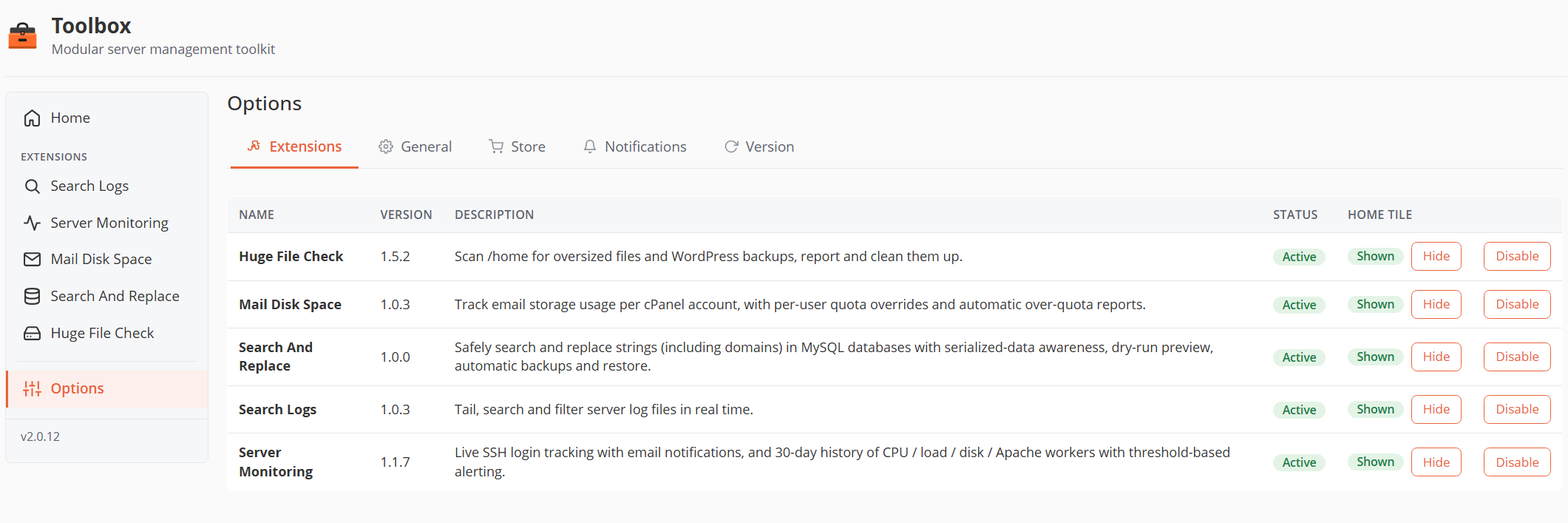
Lists every extension discovered on disk (extensions/<slug>/manifest.php), whether bundled or installed from the Store.
| Column | Meaning |
|---|---|
| Name / Version / Description | Straight from the extension's manifest.php. |
| Status | Active (green) — the extension is loaded, its sidebar entry, routes and crons are live. Disabled (gray) — files stay on disk but nothing is loaded. |
| Home tile | Shown / Hidden — controls only the dashboard tile. A hidden extension keeps running (crons, alerts, etc.); its tile just isn't rendered on the home page. |
Actions:
- Enable / Disable — toggles the extension without touching its files or settings. Disabling is the right way to pause an extension temporarily.
- Hide / Show — toggles the home tile.
Tiles on the home page can also be drag-and-drop reordered; the order is saved automatically.
General tab
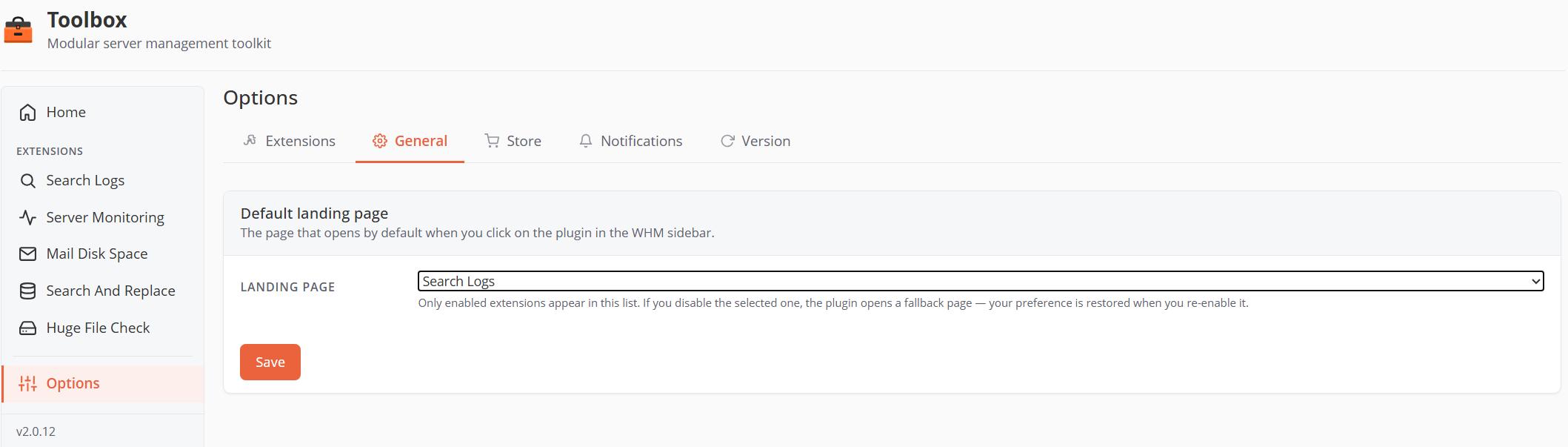
| Field | Default | Behavior |
|---|---|---|
| Landing page | Home | The page that opens when you click the plugin in the WHM sidebar. Only enabled extensions appear in the list. If you later disable the selected extension, the plugin falls back to Home — and restores your preference when you re-enable it. |
Store tab
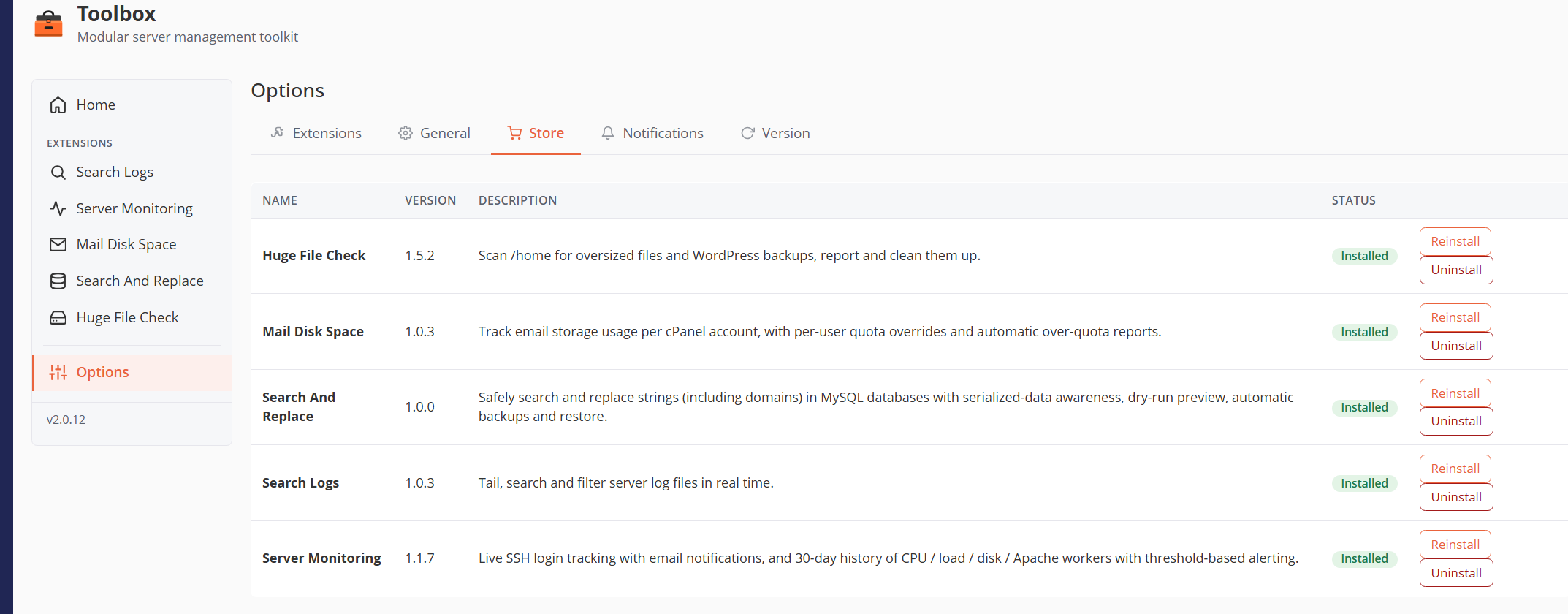
The Store lists the extensions available for this server from the remote catalog (https://static.astralinternet.com/WHM-Toolbox/extensions/catalog.php). The catalog is filtered by server IP — extensions your server isn't authorized for simply don't appear. The catalog response is cached locally for 1 hour; the Refresh button clears the cache.
| Status badge | Meaning |
|---|---|
| Not installed | Available to install. |
| Installed | Present on disk at the catalog version. |
| Update available | The catalog has a newer version than the one on disk. |
Actions:
- Install — downloads
<slug>-<version>.zip, verifies its SHA-256 checksum, validates the archive structure (no path escapes), extracts it intoextensions/<slug>/, and enables it immediately. - Update — same pipeline with the newer version. Your
*.user.jsonsetting overrides are preserved. - Reinstall — re-applies the current version (repairs corrupted/missing files).
- Uninstall — disables the extension and removes its directory. Files matching
*.user.jsonare preserved so a future reinstall finds your settings again.
If the catalog is unreachable, the tab shows Catalog offline with the error and a Retry button.
Notifications tab
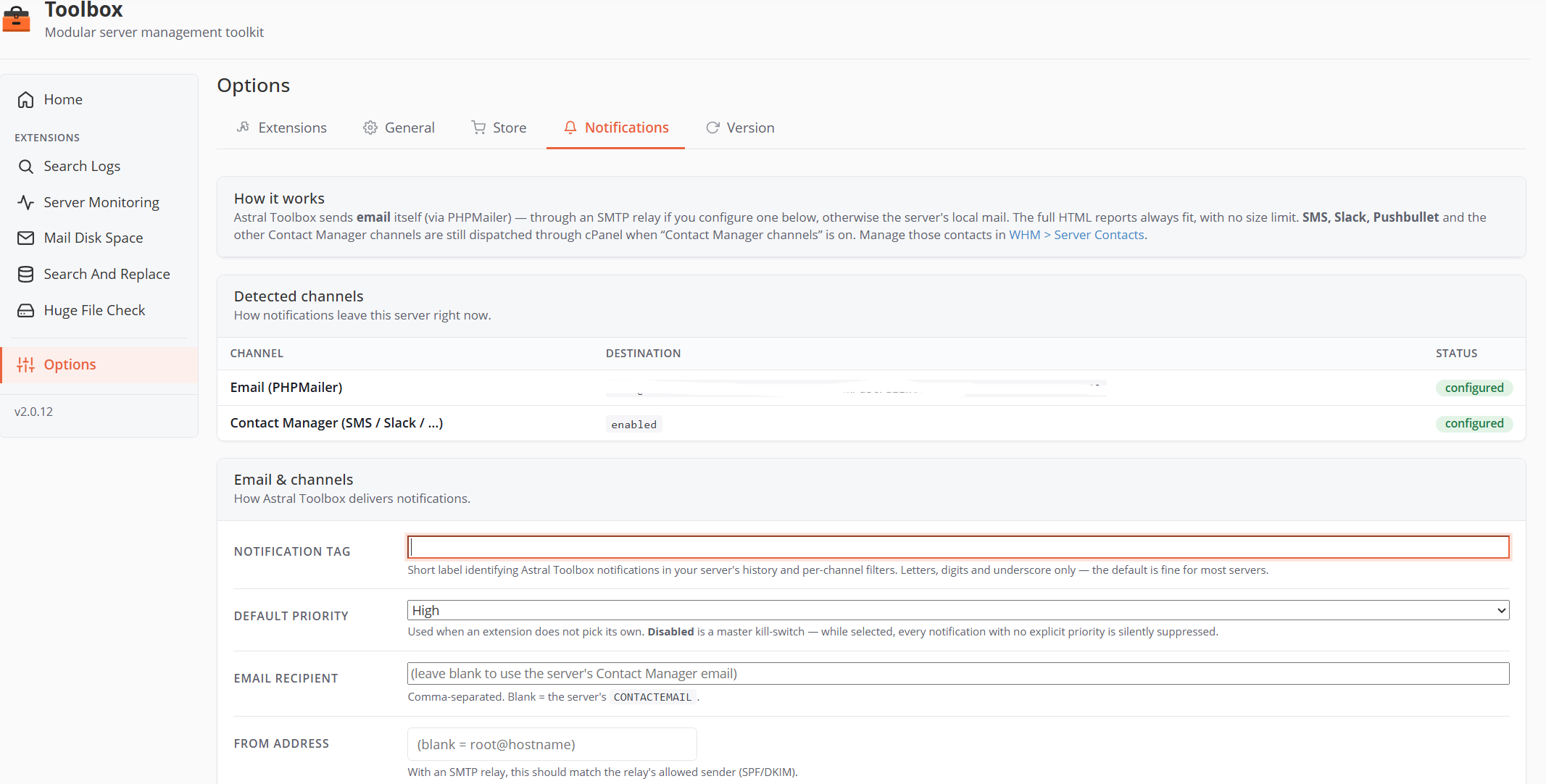
This tab configures the central Notifier used by the core and all extensions. Understanding the delivery model first makes the fields obvious:
How delivery works
Every notification (subject + plain-text body + optional HTML body) is dispatched on up to two independent channels:
- Email — always, via PHPMailer. The full HTML report is sent by the plugin itself:
- With an SMTP relay configured → direct socket connection to your relay (host/port/encryption below). TLS connections enforce certificate validation (no self-signed certs).
- Without a relay → the message is built by PHPMailer and piped to the server's local MTA (
/usr/sbin/sendmail -t -oiviaproc_open, which works even on hardened PHP builds wherepopen/mail()are disabled). - There is no size limit — full HTML reports always fit.
- Contact Manager (SMS / Slack / Pushbullet / …) — only if the toggle is on. A short plain-text version is dispatched through cPanel's
icontact, which fans out to whatever channels you configured in WHM → Server Contacts. The body is capped at 8 000 bytes (under icontact's silent-drop ceiling).
Neither channel is a fallback for the other: an email failure doesn't reroute to SMS, and vice-versa. Failures are logged (see diagnostics below).
Avoiding duplicate emails: if "Contact Manager channels" is on and the Email method is also enabled in WHM → Server Contacts, you'll receive the email twice (once rich from PHPMailer, once short from icontact). Disable the Email method in Server Contacts and keep only SMS/Slack there.
Detected channels
A read-only table showing each channel's current destination and whether it looks configured — e.g. Email (PHPMailer): admin@example.com via SMTP smtp.example.com:587 (tls).
Email & channels (form)
| Field | Default | Notes |
|---|---|---|
| Notification tag | AstralToolbox |
Event identifier used for per-channel filters in Contact Manager and in the debug log. Letters, digits, underscore only. |
| Default priority | High | Applied when an extension doesn't specify one. Disabled is a master kill-switch: every notification is suppressed (handy during maintenance). |
| Email recipient | (blank) | Comma-separated addresses. Blank → falls back to the server's CONTACTEMAIL (from /etc/wwwacct.conf). |
| From address | (blank) | Blank → root@<hostname>. With an SMTP relay, set this to a sender your relay allows (SPF/DKIM). |
| From name | Astral Toolbox |
Display name in the From line. |
| Use an authenticated SMTP relay | off | Off → local sendmail; on → the SMTP fields below apply. |
| SMTP host | — | Relay hostname (required when relay enabled). |
| Port & encryption | 587 / TLS |
587 = STARTTLS (tls), 465 = SMTPS (ssl), or none. TLS/SSL enforce certificate validation. |
| Server requires a username and password | off | Enables the username/password fields. |
| Username / Password | — | The password is stored in var/notifications.json (root-only, 0600). Leaving the password field blank on re-save keeps the existing password. |
| Also dispatch SMS / Slack / Pushbullet via Contact Manager | on | The second channel described above. |
Subjects are automatically prefixed: [<hostname>] Astral Toolbox - <subject>.
Test delivery
Both buttons use the last saved settings — save first, then test:
- Send test email — exercises only the PHPMailer/email path and reports the recipient + transport used (or the exact error).
- Send test notification (SMS / Slack) — exercises only the icontact path.
Diagnostics
The Notifier keeps a rolling log of the last 20 delivery attempts (var/notifier-debug.log, root-only) with timestamps, transport, recipients, exit codes and stderr — the first place to look when a notification "was sent but never received".
Version tab
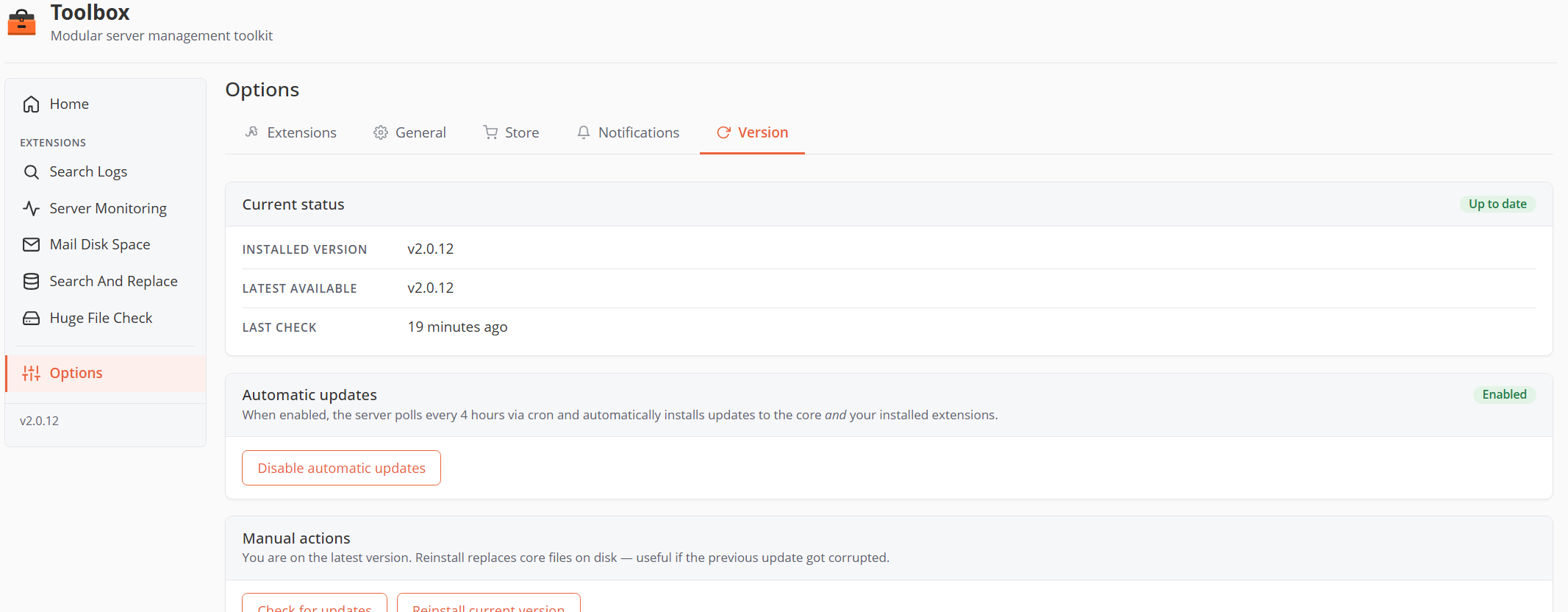
Current status
- Installed version (from
version.txt), Latest available (from the update server), Last check timestamp, and a badge: Up to date / Update available / Offline.
Automatic updates
When enabled (default), the /etc/cron.d/toolbox-auto-update cron polls every 4 hours and installs updates to the core and your installed Store extensions. Disable it to take updates manually (the cron file stays; the script no-ops).
Manual actions
- Check for updates — clears the cached version and polls the update server immediately.
- Install update (vX.Y.Z) — appears when an update is available; downloads, checksum-verifies and applies it. User data is preserved.
- Reinstall current version — replaces all core files on disk; useful if a previous update got corrupted.
Uninstall (danger zone)
Uninstall WHM-Toolbox removes the whole plugin from the server — see Installation → Uninstalling for exactly what gets cleaned up.
Where core state lives
| File | Contents | Perms |
|---|---|---|
var/state.json |
Enabled extensions, hidden tiles, tile order, default landing page, auto-update flag, last update check | 0600 |
var/notifications.json |
Everything on the Notifications tab, including SMTP credentials | 0600 |
var/notifier-debug.log |
Last 20 notification attempts | 0600 |
.remote-version.cache / .remote-catalog.cache |
Update-server and Store catalog caches (6 h / 1 h TTL) | — |
These files are never overwritten by updates or reinstalls.